How to Install and Open GetMiryon on macOS
|
5
min read
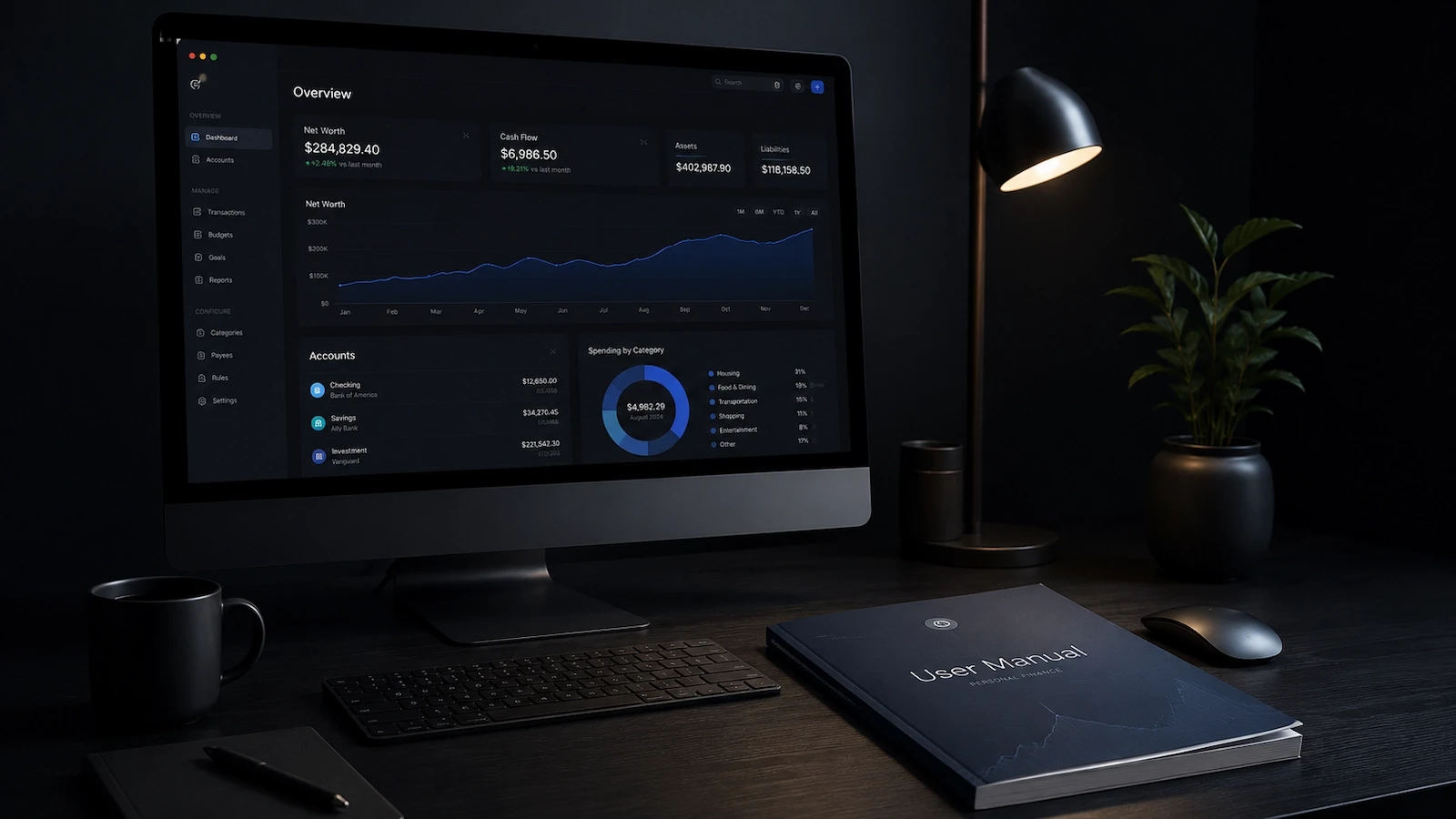
Welcome to the installation tutorial of the GetMiryon User Manual. GetMiryon is a local-first, desktop-based personal balance sheet tracker built specifically for privacy-conscious wealth builders. Because we treat your personal financial numbers with the security of a private vault, our distribution model and installation process are fundamentally different from traditional, cloud-based consumer software.
This step-by-step user manual will walk you through downloading, installing, and configuring GetMiryon using our native macOS DMG file distribution packet.
GetMiryon’s Distribution Model
When looking for a privacy first net worth tracker macOS tool, users often wonder why GetMiryon isn't distributed directly through the official Apple Mac App Store. This is a deliberate, strategic engineering choice rooted in our core philosophy of total data sovereignty.
We bypass the traditional centralized storefronts for two specific reasons that directly benefit our users:
Guarding Your Download Integrity and Absolute Privacy
By downloading your personal finance software directly from us, your relationship remains strictly between you and our company. When you purchase an app through the Mac App Store, Apple acts as an intrusive, third-party gatekeeper. They track your active download habits, link your financial software to your global Apple ID, and permanently record your purchase history on their cloud servers.
To fully align with our mission of absolute data privacy, we refuse to let any third party profile your financial tool usage. With GetMiryon, your tools, and your wealth tracking routines, remain hidden from third party tracking networks.
Enabling Rapid, Unrestricted Feature Deployment
Relying on a centralized app store means every software patch, feature request, or security update must go through an unpredictable, often lengthy review process. By distributing GetMiryon independently, we maintain complete, rapid control over releases and updates.
Immediate Patches: If a bug is identified or if global foreign exchange (FX) feeds change their structural data architecture, we can push out localized patches to our users instantly. You do not have to wait days or weeks for an app store review team to approve a mission-critical fix.
Zero Feature Restrictions: App stores often enforce rigid sandboxing rules that restrict how local applications interact with the file system. Distributing via a native DMG file allows GetMiryon to offer advanced local-first functionality without platform policy limitations.
Step-by-Step Installation: Overcoming the "Unnotarized" macOS Warning
We are currently in the process of finalizing the formal Apple notarization pipeline for GetMiryon. Because this direct-download build is not fully notarized inside Apple's ecosystem yet, macOS will trigger a security warning the first time you attempt to run it.
Do not worry: your local data remains perfectly secure. You simply need to perform a quick, one-time manual approval sequence to tell your Mac that you trust this application. Follow these exact steps to complete your initial installation:
Step 1: Download from the Official Portal
Open your web browser and navigate strictly to our official downloading page: www.getmiryon.com/download.
Download the native macOS DMG file package to your machine.
Step 2: Mount the Virtual Disk Array
Locate the downloaded
.dmgfile in your Downloads folder.Double-click the DMG file to open it. A custom Finder disk volume window will pop up on your screen, revealing the GetMiryon app icon alongside a shortcut arrow to your local applications directory.
Step 3: Move the App to the Application Folder
Click and hold the GetMiryon app icon inside that pop-up window.
Drag and drop the icon directly into the Applications folder icon right next to it. This copies the execution package into the standard, secure macOS location on your hard drive.
You can now close and eject the temporary virtual DMG disk window.
Step 4: The Initial Open and the Security Prompt
Open your Applications folder through Finder or Launchpad and double-click GetMiryon to launch it.
Because the build is not notarized yet, macOS will halt the startup sequence and display an alert dialog stating that the developer cannot be verified or that the app was downloaded from an unverified source.
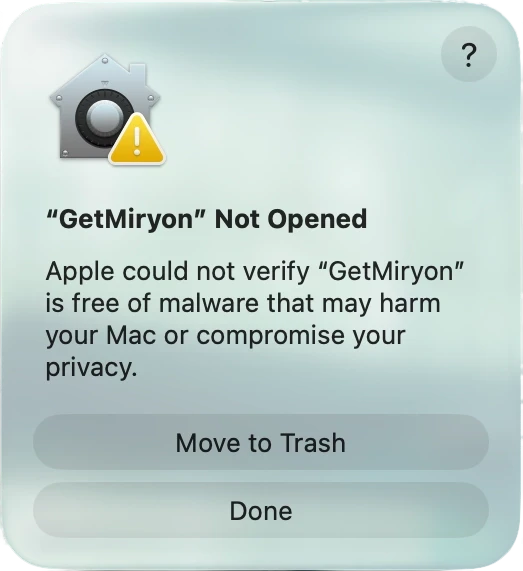
On this warning dialog box, click Done (or Cancel) to close the alert window. Proceed directly to Step 5 to grant local permission.
Step 5: Approve the App inside System Settings
Click the Apple logo in the top-left corner of your desktop screen and select System Settings.
Scroll down the left sidebar menu and click on Privacy & Security (or search for Privacy & Security using the search field)
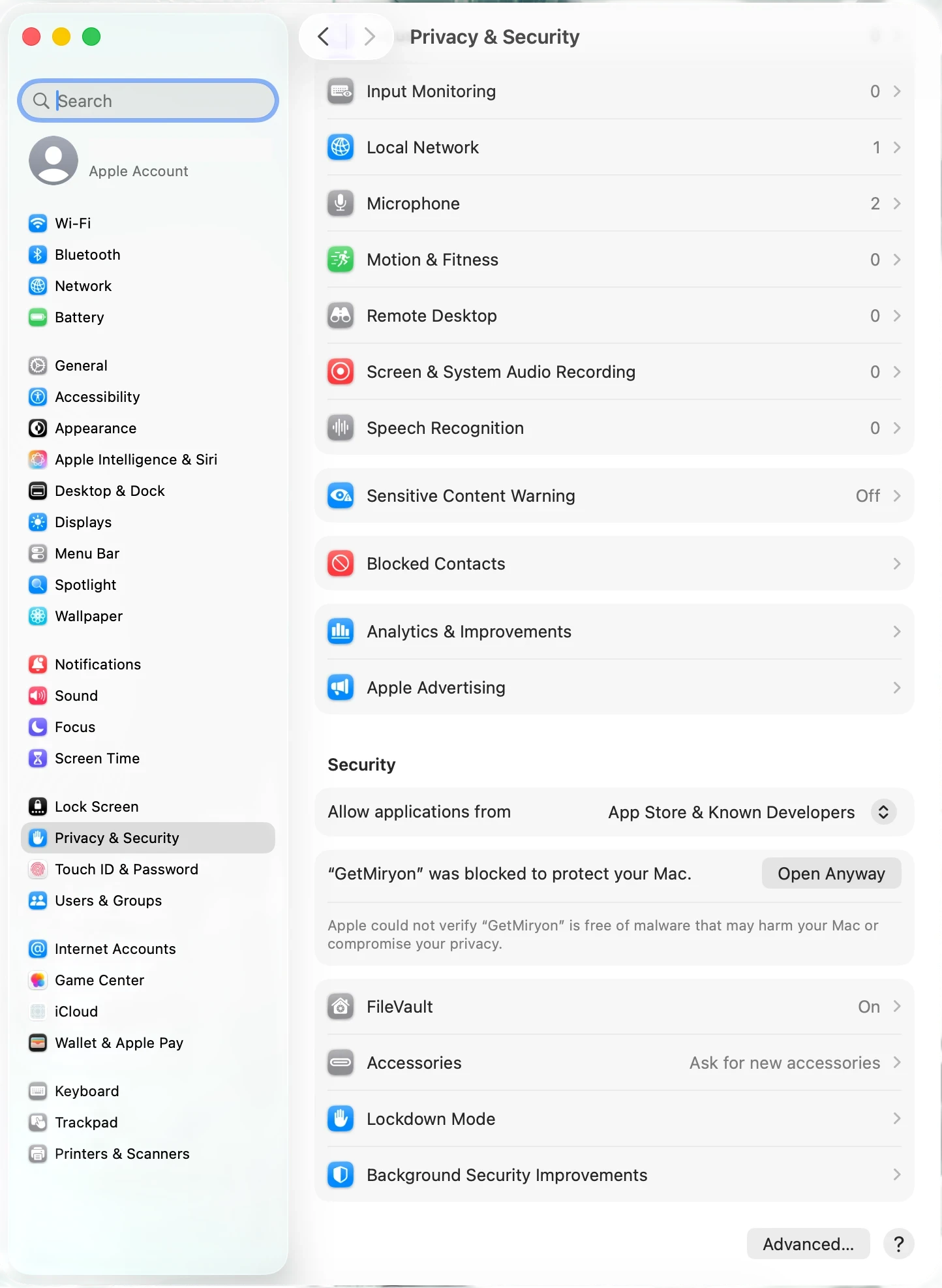
Scroll down the right-hand panel until you locate the Security section. You will see a message explicitly stating: "GetMiryon was blocked from use because it is not from an identified developer."
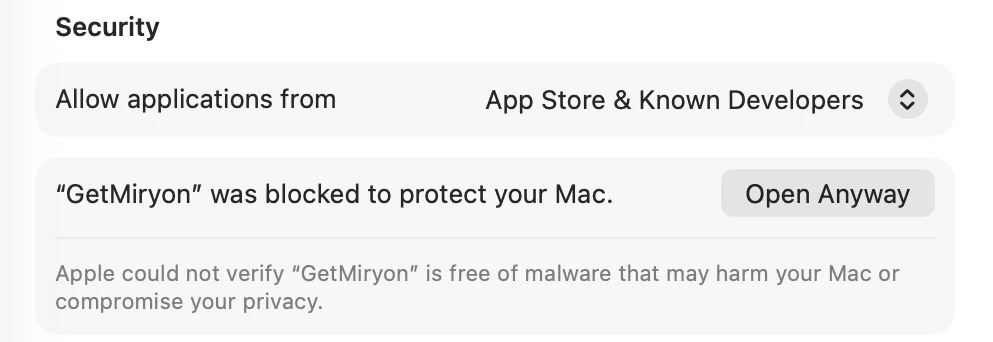
Click the Open Anyway button located right next to that message.
Your Mac will prompt you for authorization. Enter your local machine password (the exact password or Touch ID biometric you use to log into your Mac every morning) to confirm the structural change.
Step 6: Final Execution Lock-In
Return to your Applications folder and double-click GetMiryon once more.
A final confirmation dialog box will pop up, asking if you are absolutely sure you want to run the application.
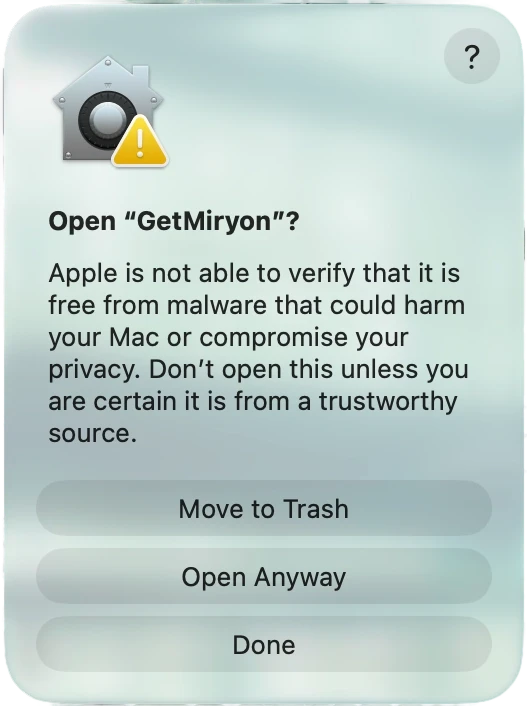
Click the Open Anyway (or Open) button on this prompt.
Successful Setup: You're Done!
Congratulations! GetMiryon will now load perfectly, displaying your secure, local blank slate dashboard.
Because macOS caches this explicit security override on your local hard drive, you only need to perform this manual configuration sequence exactly one time during your initial installation. Moving forward, you can open, use, and update your local balance sheet tracking terminal seamlessly, just like any other app on your Mac, while retaining 100% data sovereignty.
Next Steps in Your Mastery Journey
Now that your local platform is installed, learn how to build your financial architecture or navigate your desktop dashboard workspace securely:
GetMiryon Interface: Master Your Personal Balance Sheet Command Center
Log Your Asset Ledger: How to Add, Edit, and Update Assets in GetMiryon