How to Add, Edit, and Update Assets in GetMiryon
|
5
min read

Managing your net worth begins with building an accurate personal balance sheet. Because GetMiryon is a privacy-first, local-first application, you have total control over how your assets are structured.
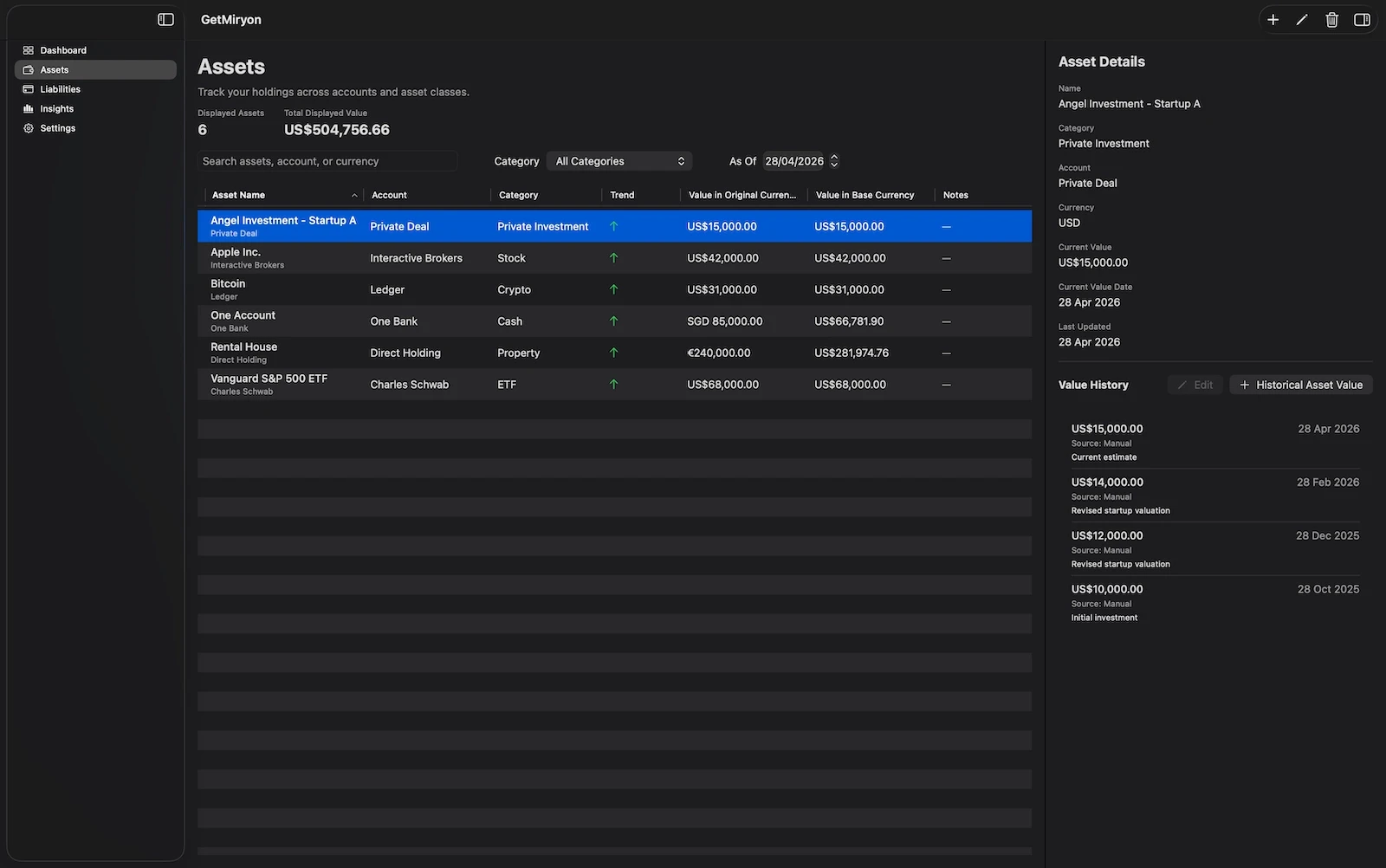
This step-by-step user manual will guide you through adding new assets, modifying account metadata, and logging current or historical values to maintain a pristine financial dashboard.
How to Add a New Asset Item
When you first open GetMiryon, your asset screen will be a clean slate. Follow these steps to log your first asset item.
Step 1: Open the Add Asset Dialog
Navigate to the Asset Screen from the main menu.
Click the Plus (+) button located at the top right corner of the screen. This will open the Add Asset Item dialog box.
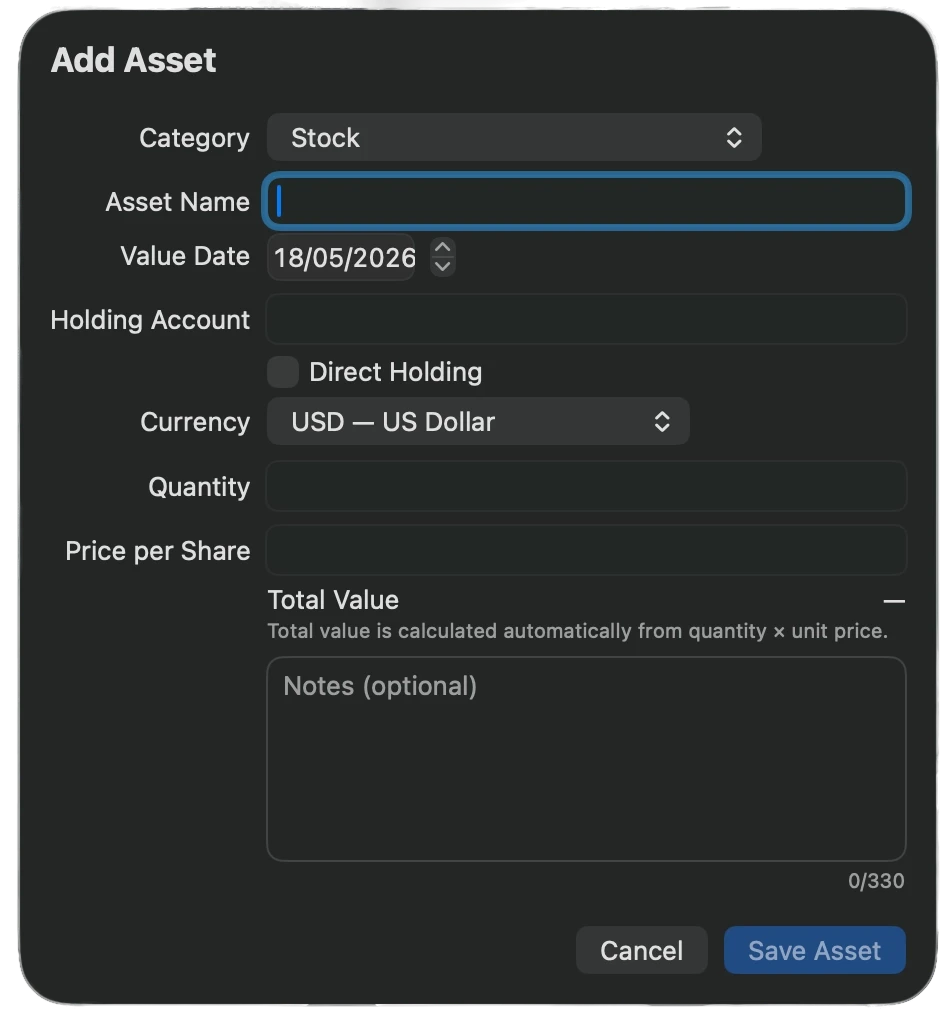
Step 2: Fill in the Asset Fields
To ensure accurate reporting and precise multi-currency conversion, provide the following information in the dialog fields:
Category: Select the appropriate asset class from the dropdown list. GetMiryon supports a wide array of asset classes, including traditional banking accounts and alternative investments (see the full list of supported categories below).
Asset Name: Enter a clear, identifiable name for the asset (e.g., Main Checking Account or Physical Gold Bars).
Value Date: Select the exact date when this asset value is officially effective, rather than the current calendar date on which you happen to be typing it into the app. For example, if you are conducting your monthly audit on July 3rd but entering your bank statement balance as of June 30th, set the Value Date to June 30th
Holding Account Name: Enter the name of the institution or location holding the asset (e.g., Chase Bank or Vanguard).
Tip: If you store the asset yourself rather than using a financial institution, check the "Direct Holding" box. Use this for physical gold stored in a home safe, cash under a mattress, or physical collectibles.
Original Currency: Select the native currency of the asset. GetMiryon supports global currencies and major regional currencies. If this currency differs from your Base Currency, the app will handle the conversion automatically.
Total Value in Original Currency: Enter the current valuation of the asset in its native currency.
Quantity and Price / Unit: For specific financial and alternative asset classes, the dialog box will expand to require your exact unit count and purchase/market price per unit. The input layout changes based on your chosen category:
Stock: Enter the quantity of shares and the Price per Share.
Options & Derivatives: Enter the quantity of contracts and the Price per Contract.
Crypto & Digital Asset: Enter the total tokens/units owned and the Price per Unit.
Precious Metal & Commodities: Enter your raw material/metal quantity and the Price per Unit.
ETF, Mutual Fund, Corporate Bond, & Government Bond: Enter your total fund or debt units and the Price per Unit.
Notes: We highly encourage you to add important context here, such as account numbers, purchase dates, serial numbers, or maturity dates.
Supported Asset Categories in GetMiryon
GetMiryon is engineered to track traditional, global, and alternative wealth formats. When adding an item, choose from these precise categories:
Bank Account: Standard checking, savings, or current accounts.
Cash: Physical currency held outside of banks.
Time Deposit: Certificates of deposit (CDs) or fixed-term savings accounts.
Stock: Shares of publicly traded companies. (Requires Quantity + Price per Share).
ETF: Exchange-Traded Funds. (Requires Quantity + Price per Unit).
Mutual Fund: Traditional managed mutual funds. (Requires Quantity + Price per Unit).
Government Bond: Sovereign debt securities (e.g., US Treasury bonds). (Requires Quantity + Price per Unit).
Corporate Bond: Debt securities issued by private corporations. (Requires Quantity + Price per Unit).
Crypto: Bitcoin, Ethereum, and other cryptocurrencies. (Requires Quantity + Price per Unit).
Digital Asset: NFTs, virtual real estate, or other web3 tokens.
Digital Wallet: Online payment platforms (e.g., PayPal, Payoneer).
Options & Derivatives: Financial contracts like calls, puts, or futures. (Requires Quantity + Price per Contract).
Precious Metal: Direct holdings of physical bullion (e.g., gold, silver, platinum). (Requires Quantity + Price per Unit).
Commodities: Direct holding of raw materials or agricultural products. (Requires Quantity + Price per Unit).
Property: Residential, commercial, or raw land real estate holdings.
Vehicle: Cars, motorcycles, boats, or aircraft. (Remember to adjust for depreciation over time).
Collectibles: High-end art, luxury watches, jewelry, or rare wine portfolios.
Private Investment: Private equity stakes, venture capital placements, or startup funding.
Intellectual Properties: Revenue-generating royalties from books, software, music, or patents.
Pension Fund: Retirement frameworks like a 401(k), IRA, or country-specific pension schemes.
Insurance: Life insurance policies with an underlying cash surrender value.
Account Receivable (Current): Short-term business invoices owed to you within 12 months.
Account Receivable (Non-Current): Long-term business invoices owed to you beyond 12 months.
Loan Receivable (Current): Personal or structured loans you granted that are repayable within a year.
Loan Receivable (Non-Current): Personal or structured loans you granted with a repayment term exceeding one year.
Other: Any unique item of storable value that does not fit the categories above.
How to Edit Asset Information and Metadata
If you need to rename an asset, change its holding account, or fix a typo in the setup information, use the edit function.
How to Modify Asset Metadata:
In the main asset table, highlight/click the asset you wish to change.
Click the Pencil (Edit) button at the top right of the asset screen. This launches the Edit Asset Item dialog box.
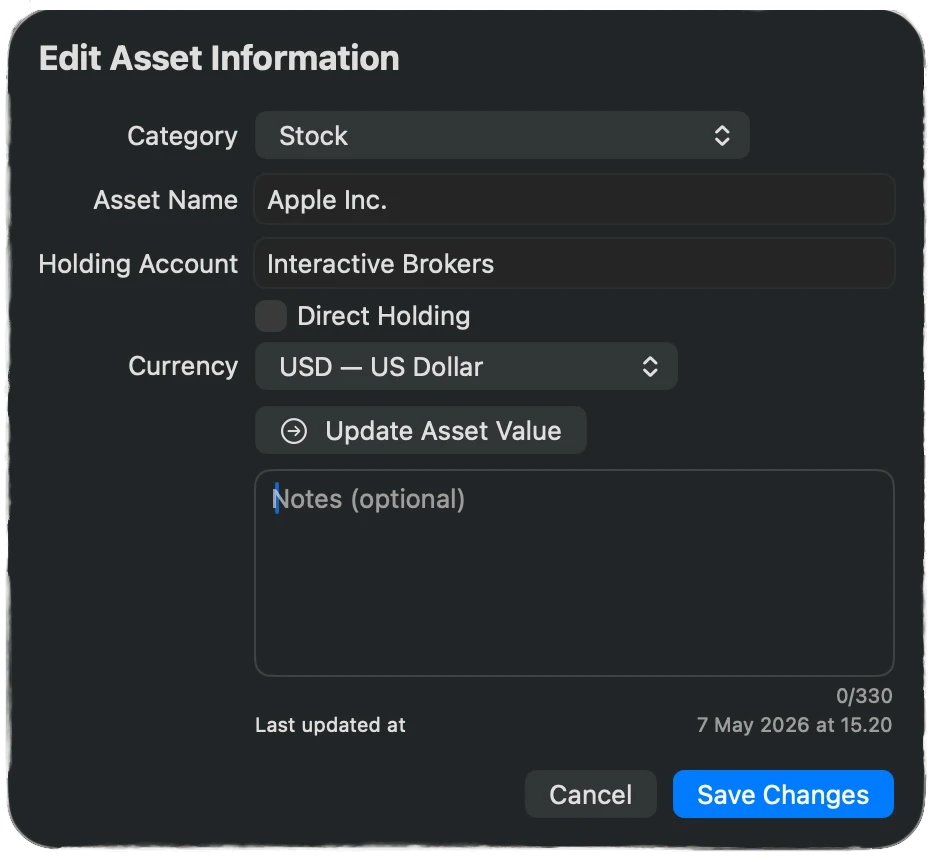
You can modify the following fields using this dialog:
Category
Asset Name
_Holding Account Information
Currency
Notes
Click Save Changes to update the metadata.
⚠️ Important Concept: This Pencil function is strictly intended to update the general structural information of the asset item. Do not use this function to change your financial balances. To log changes in the asset’s balance or value over time, use the value history tools described below.
Shortcut: There is a dedicated button inside this edit dialog that can quickly jump you directly to the Update Asset Value workflow if needed.
How to Update and Edit Current and Historical Asset Values
Wealth building requires tracking financial trajectories over time. To input a new monthly balance check, change a stock balance, or build out historical data arrays, follow this local workflow.
Logging a New Value Entry (e.g., Monthly Pulse Check)
Click on the asset row within the main view table. This action instantly opens the Asset Details Pane on the right side of your desktop screen.
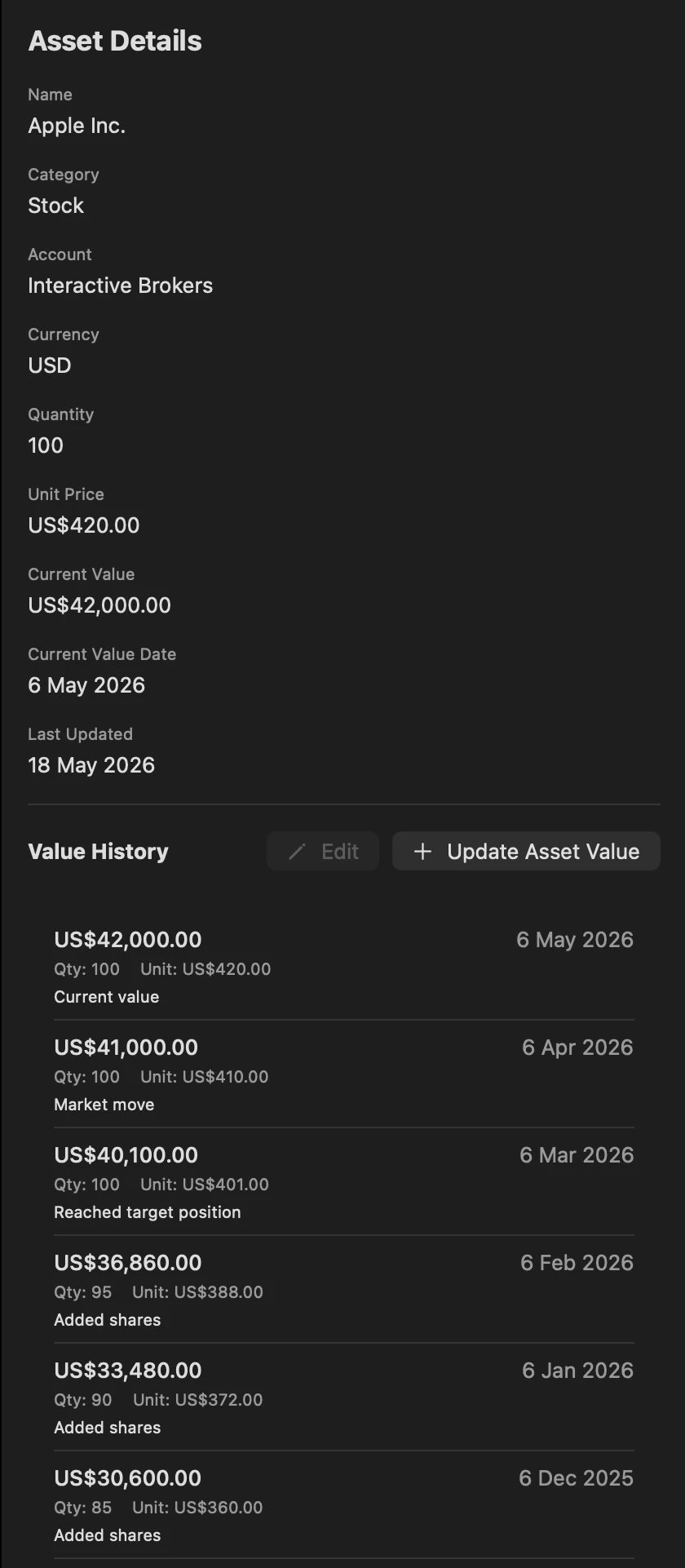
Find the Value History section inside that right-hand pane.
Click the Update Asset Value button to launch the update interface.
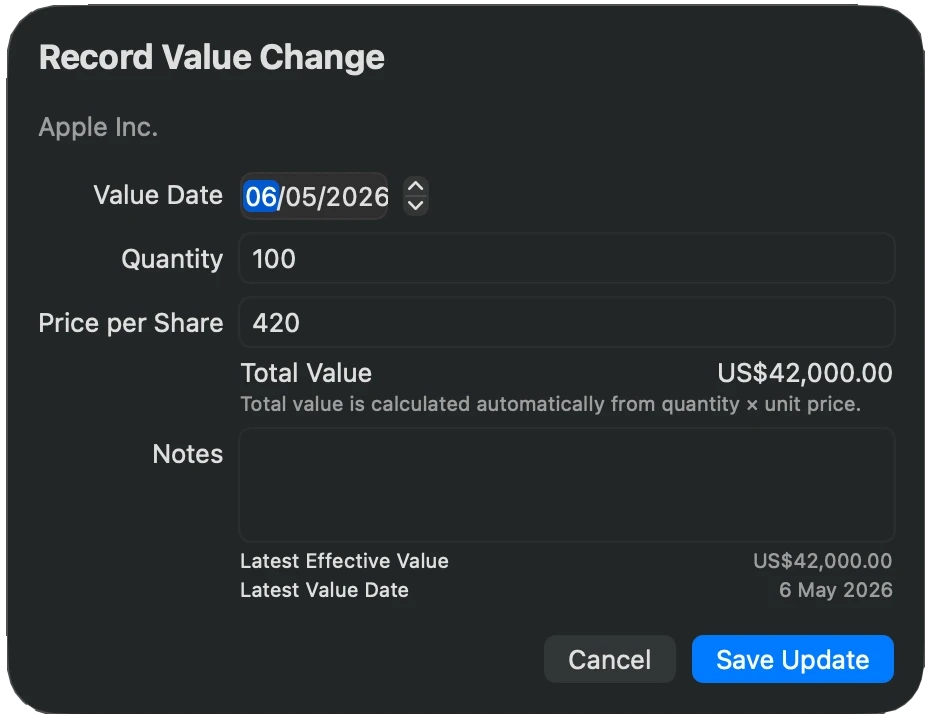
Fill in the valuation fields:
Value Date: Choose the date of the valuation. GetMiryon fully supports past dates, allowing you to manually backdate and build historical net worth charts for accurate record keeping.
New Value / Balance: Input the current balance or asset price in its original currency.
Click Save Update. Your net worth trend lines and current financial ratios will recalculate instantly.
Modifying an Existing Historical Value Entry
If you made a mistake on a specific past balance entry, you can easily amend it without deleting the whole asset item.
Select the asset item in the main view table. This action instantly opens the Asset Details Pane on the right side of your desktop screen.
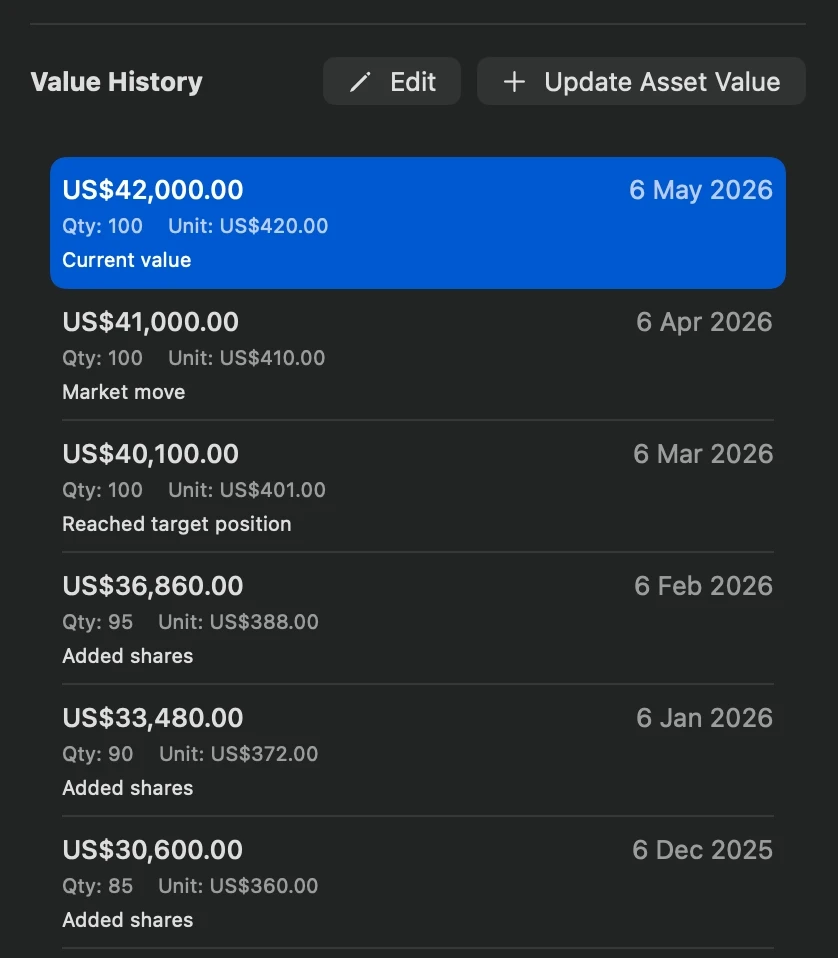
In the Value History section, scroll through the logged entries and click to highlight the exact entry you want to correct.
Click the Edit button located directly at the top of the Value History section.
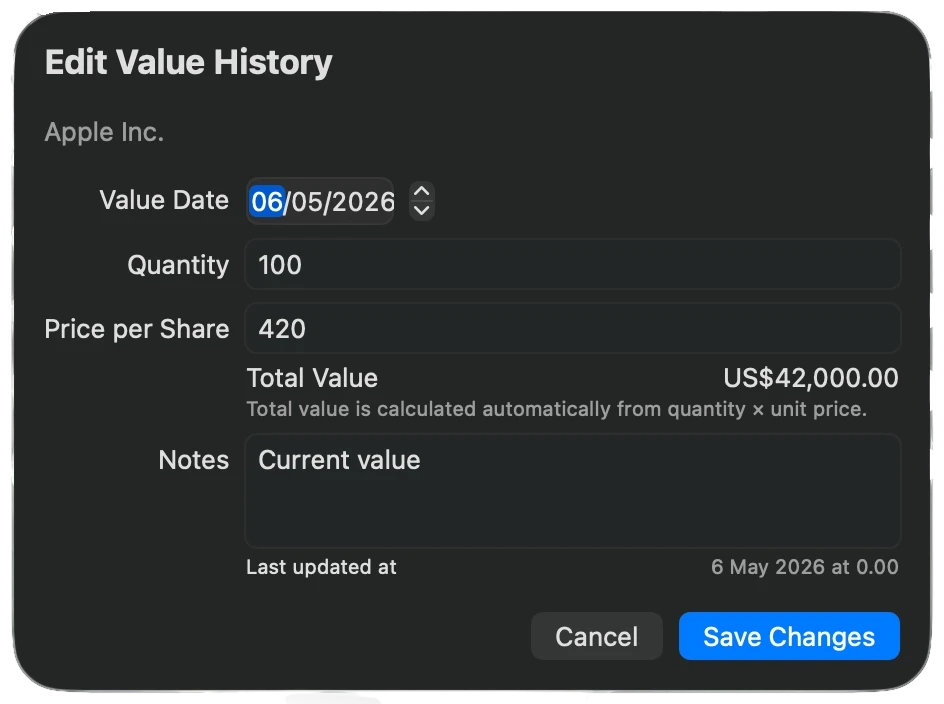
Amend the historical balance value or change the record date, then confirm the change.
User Tip: Use Item-Level vs. Entry-Level Notes
GetMiryon gives you two distinct layers for record keeping. Maximize them to build a flawless audit trail:
Asset-Level Notes: Use this for structural text that rarely changes (e.g., Account Number: XXXXX-1234, locked until age 60).
Value Entry-Level Notes: Every individual history update can hold its own unique notes block. Use this to explain spikes or drops in value (e.g., Injected $5,000 year-end bonus, Market correction drop, or Annual depreciation adjustment).