How to Add, Edit, and Update Liabilities in GetMiryon
|
5
min read
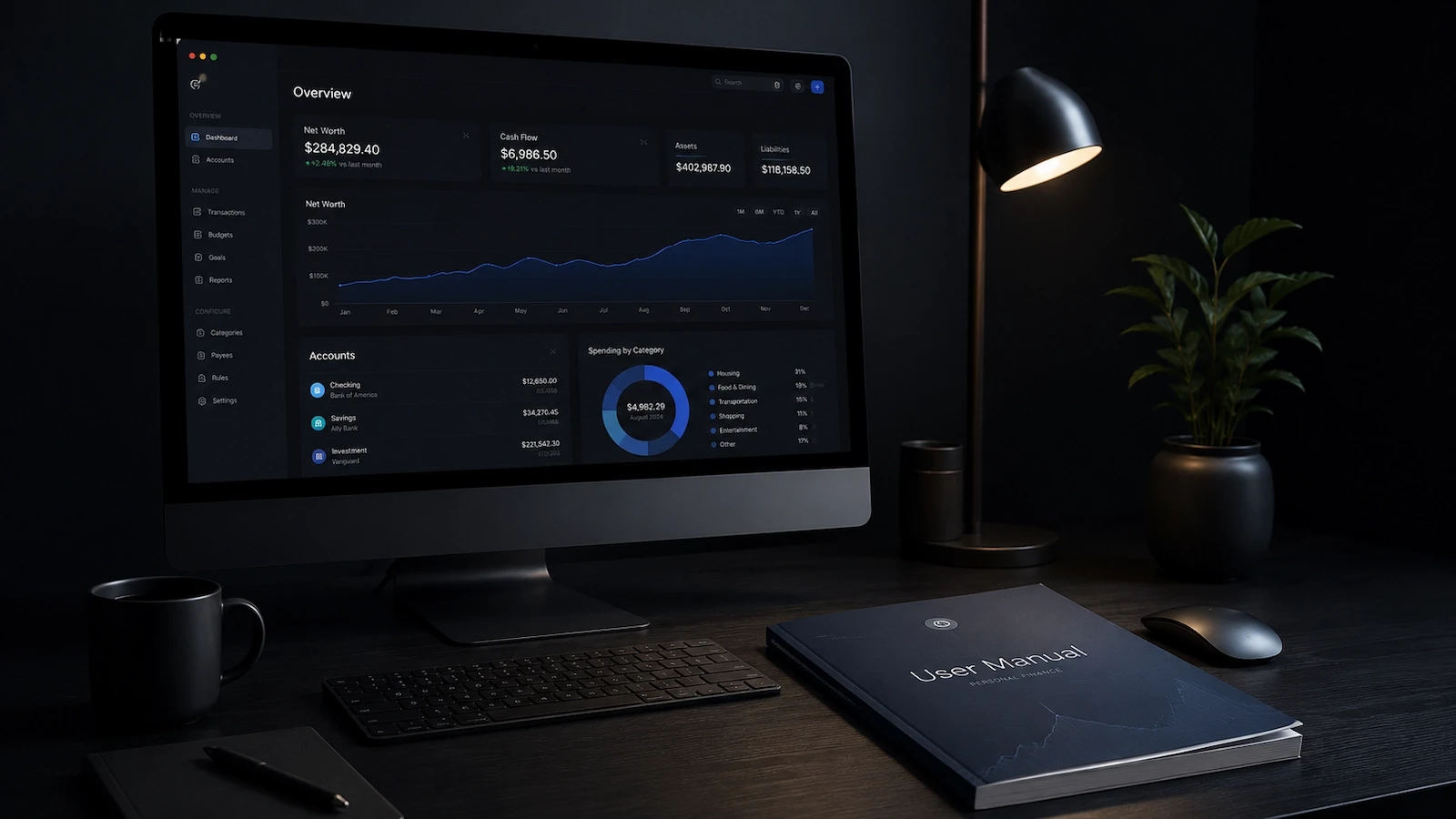
A complete personal balance sheet requires tracking not just what you own, but what you owe. In GetMiryon, logging your debts, loans, and obligations accurately is essential for calculating your true net worth and evaluating your financial risk ratios.
Because GetMiryon is a privacy-first, desktop-based app, your debt structure remains entirely stored on your local machine, safe from third-party aggregators and data harvesters.
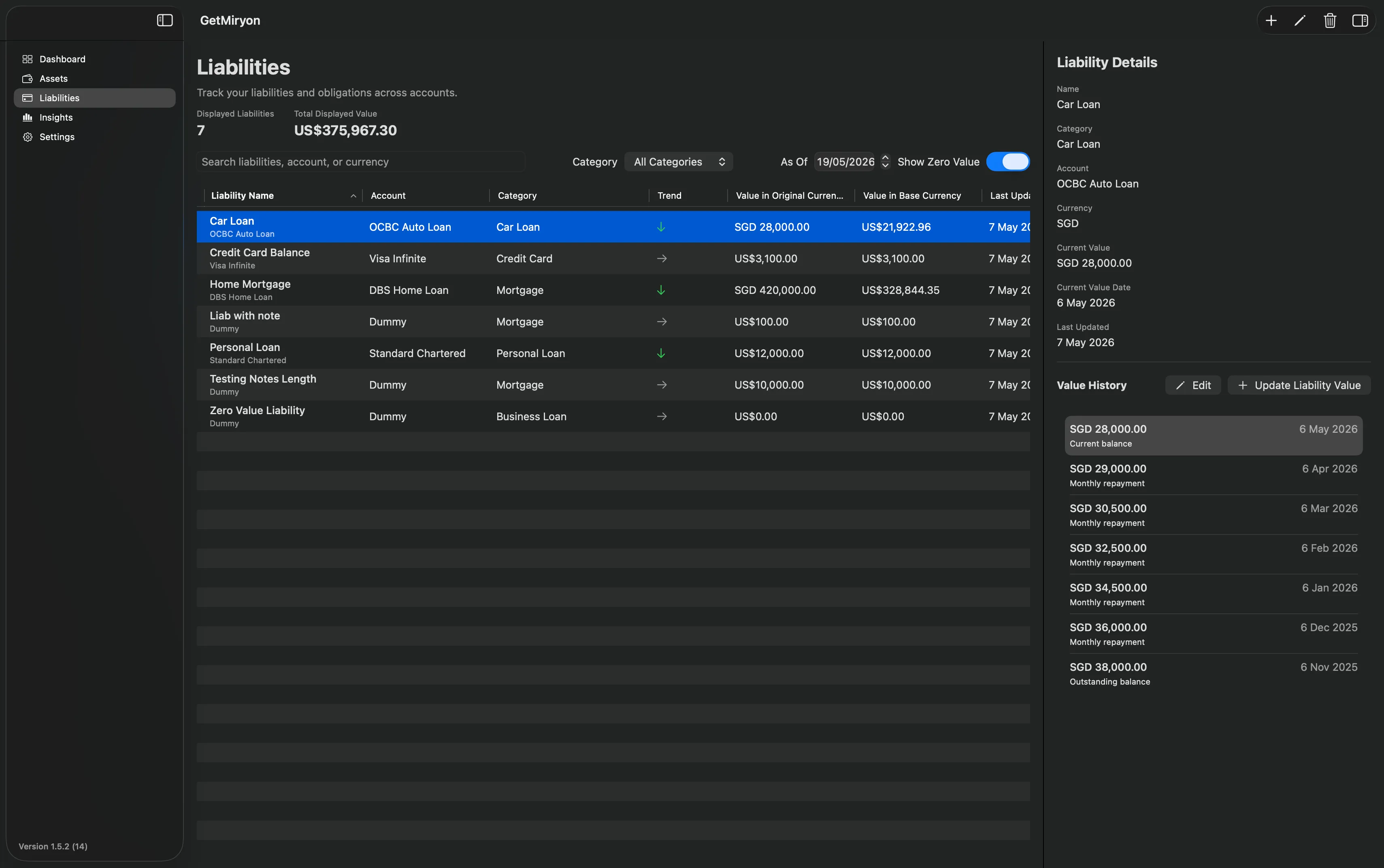
This step-by-step user manual will guide you through adding new liabilities, modifying account metadata, and updating outstanding balances to ensure your financial health metrics are perfectly accurate.
How to Add a New Liability Item
When setting up your financial command center or taking on a new obligation, follow these steps to log a liability item.
Step 1: Open the Add Liability Dialog
Navigate to the Liability Screen from the main application menu.
Click the Plus (+) button located at the top right corner of the liability screen. This action will launch the Add Liability Item dialog box.
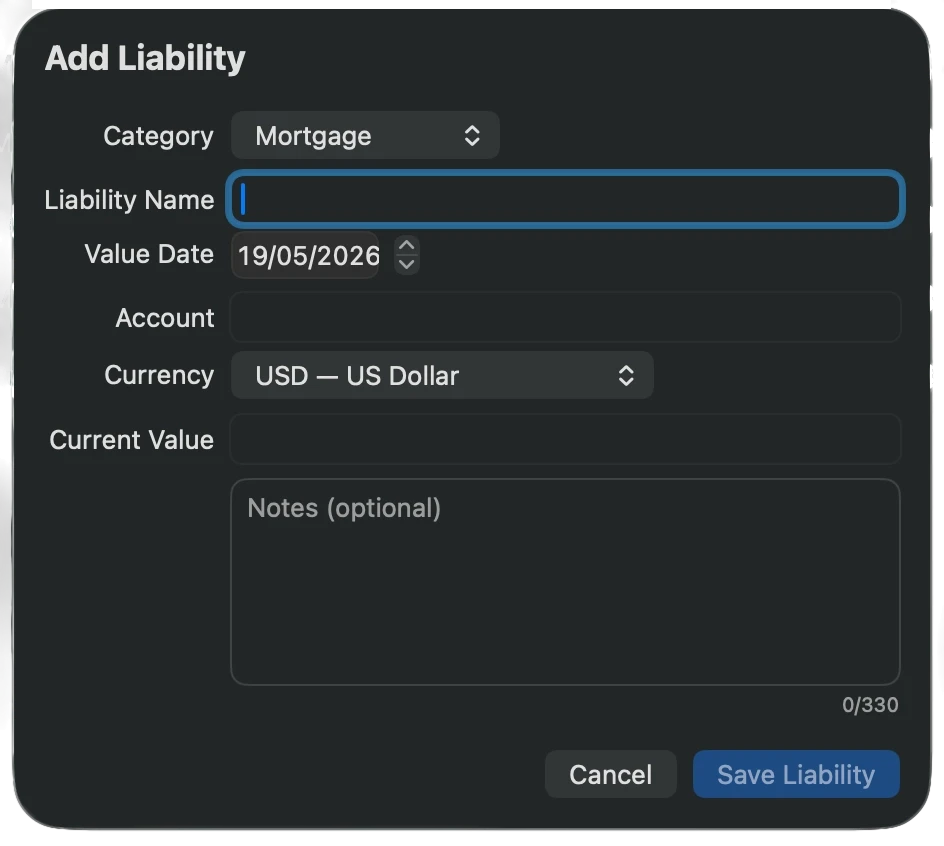
Step 2: Fill in the Liability Fields
To ensure robust accounting data and flawless multi-currency calculation, provide the following details in the dialog fields:
Category: Select the appropriate debt class from the dropdown menu. GetMiryon natively supports standard consumer, institutional, and alternative debt formats (see the full list of supported categories below).
Liability Name: Assign a clear, recognizable name for the obligation (e.g., Main Street Mortgage or Primary Platinum Credit Card).
Value Date: Select the exact date when this initial liability balance is officially effective, rather than the current calendar day on which you happen to be typing it into the app. For historical data accuracy, always align this field with the effective statement date provided by your lender.
Account: Enter the name of the financial institution or entity to which the debt is owed (e.g., Wells Fargo, Ally Bank, or Tax Authority).
Original Currency: Select the native currency in which the debt is legally denominated. GetMiryon supports a broad range of global and regional currencies. If this matches a currency different from your designated Base Currency, the app automatically tracks and updates the conversion via its anonymous local calculation engine.
Value: Input the total outstanding principal balance of the debt on the specified Value Date.
Notes: We highly encourage you to log critical parameters of the obligation here, such as loan account numbers, interest rates, fixed or variable terms, maturity dates, and total loan tenors.
Supported Liability Categories in GetMiryon
GetMiryon is engineered to track traditional institutional debts as well as specialized investment and tax liabilities:
Mortgage: Real estate loans for your primary residence, secondary homes, or commercial investment properties.
Personal Loan: Unsecured or secured lines of credit from banks, credit unions, or private entities.
Car Loan: Auto, motorcycle, boat, or recreational vehicle financing packages.
Credit Card: Open-ended revolving lines of credit. (Tip: You can update this monthly to reflect your statement balance or current outstanding obligations).
Margin Loan: Investment leverage drawn against your brokerage account equity.
Business Loan: Debt facilities, term loans, or equipment financing attached to your commercial entities.
Tax Payable: Assessed, outstanding, or deferred tax liabilities owed to local, state, or federal authorities.
Other: Any custom financial obligation, personal debt, or legal liability that does not perfectly map to the categories listed above.
How to Edit Liability Information and Metadata
If you need to fix a typo, rename a debt account, change its classification, or modify structural descriptions, use the local edit feature.
How to Modify Liability Metadata:
In the main liability view table, click to highlight the liability you wish to change.
Click the Pencil (Edit) button located at the top right of the liability screen to display the Edit Liability Item dialog box.
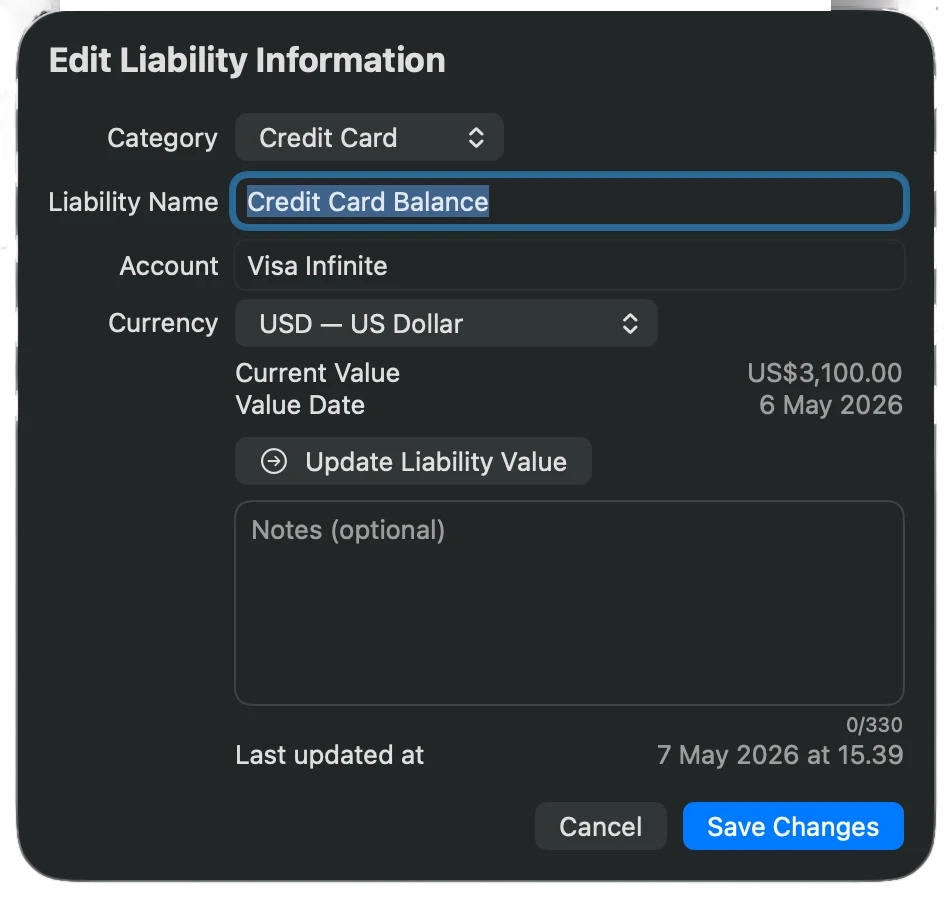
You can modify the following fields using this function:
Category
Liability Name
Account (Lender Information)
Currency
Notes
Click Save to confirm and lock in your structural changes.
⚠️ Important Concept: This Pencil function is strictly designed to edit the general information and structural metadata of the liability item. Do not use this function to record your routine loan paydowns or changing balances. To log progress on your debts or track shifting balances, use the historical value tools detailed below.
Shortcut: If you accidentally open this dialog looking to update your balance, there is a shortcut button embedded directly within this screen to instantly take you to the Update Liability Value function.
How to Update and Edit Current and Historical Liability Values
As you make principal payments, clear off credit cards, or accrue tax liabilities, your balance sheet values must change. Follow this local workflow to capture these adjustments:
Logging a New Balance Entry (e.g., Monthly Principal Paydown)
Select the liability row within the main view table. This action automatically populates the Liability Detail Pane on the right side of your desktop view.
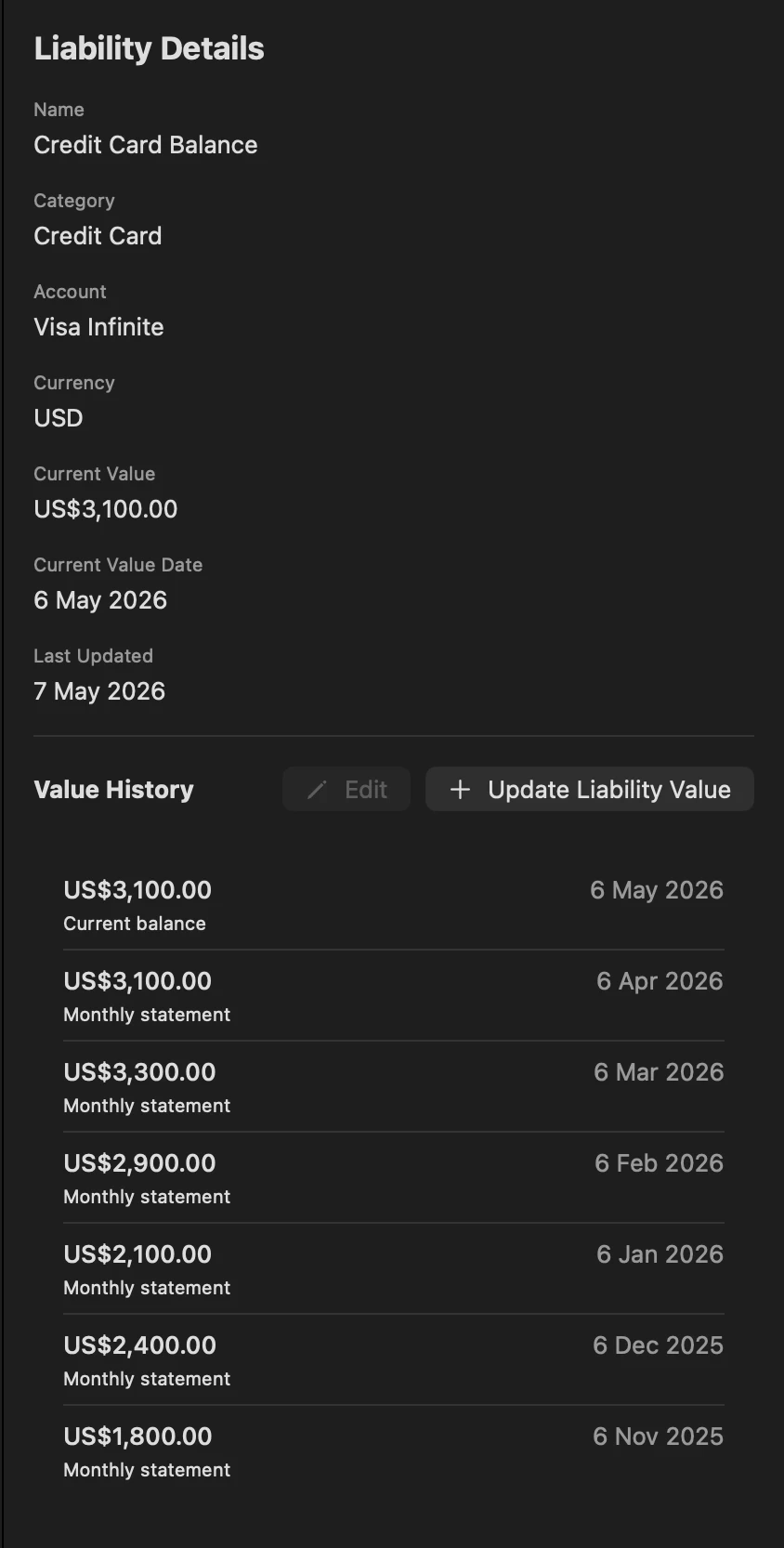
Locate the Value History section inside that right-hand pane.
Click the Update Liability Value button to launch the update sub-dialog.
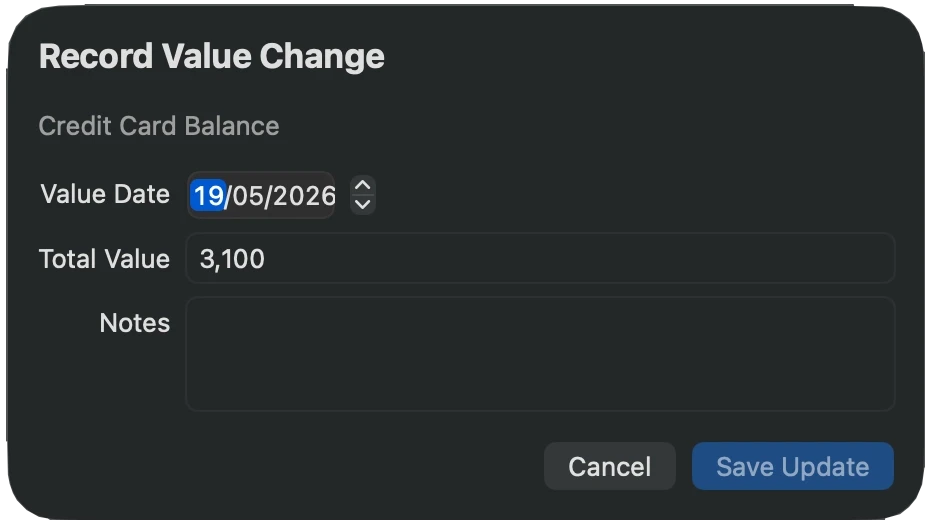
Input the valuation metrics:
Value Date: Select the date when this balance adjustment is officially effective. GetMiryon fully supports historical backdating, allowing you to reconstruct past debt paydowns to generate rich, backward-looking net worth progression charts.
Value: Input the exact new outstanding balance in its original currency.
Click Save Update. Your global net worth balance, debt-to-asset metrics, and leverage charts update instantly across the app.
Modifying an Existing Historical Value Entry
If you discover an error or typo in a historical balance log, you can easily fix it without skewing the rest of your records.
Highlight the liability item in the main view table to open the Liability Detail Pane on the right.
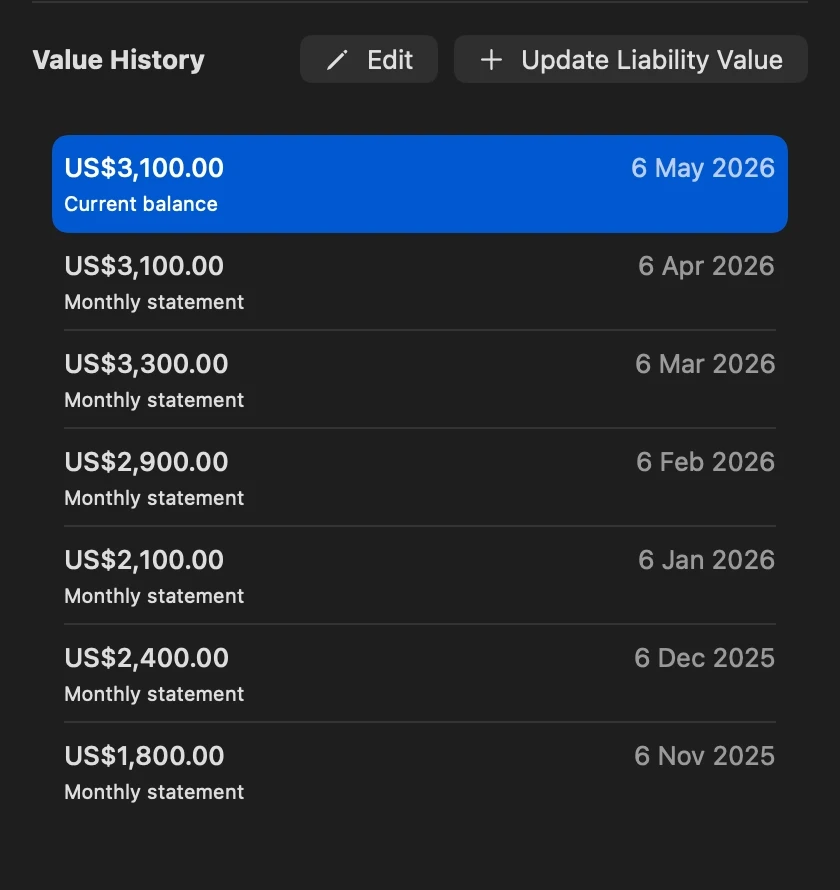
In the Value History section, scroll through your chronological data logs and click to highlight the exact entry requiring correction.
Click the Edit button situated at the top of the Value History section.
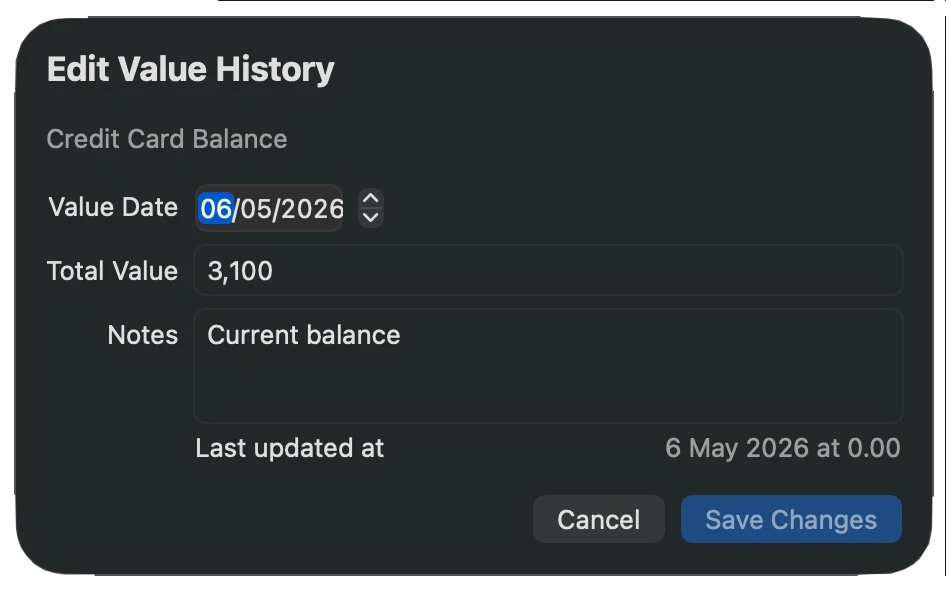
Amend the historical balance value or modify the effective valuation date, then save the correction.
User Tip: Use Item-Level vs. Entry-Level Notes
Maximize GetMiryon's dual-layered notes architecture to build a flawless debt audit trail:
Liability-Level Notes: Use this for structural debt contracts that rarely shift (e.g., Account: #123-456, 30-Year Fixed at 4.25%, matures October 2054).
Value Entry-Level Notes: Every chronological update can carry its own unique remarks. Use this to track specific payoff events or milestones (e.g., Made $2,000 extra principal payment via tax refund or Cleared holiday credit card balance in full).